
The platform
Inside the control room.
Sources, scene routing, audio and the rundown, as they appear in VMediaBoard. Each work area is explained below, with the controls that matter pointed out.
Four work areas
Four work areas. One production.
Sources, scene routing, audio and the rundown share one screen. Point at a work area to see where it lives, then open it.
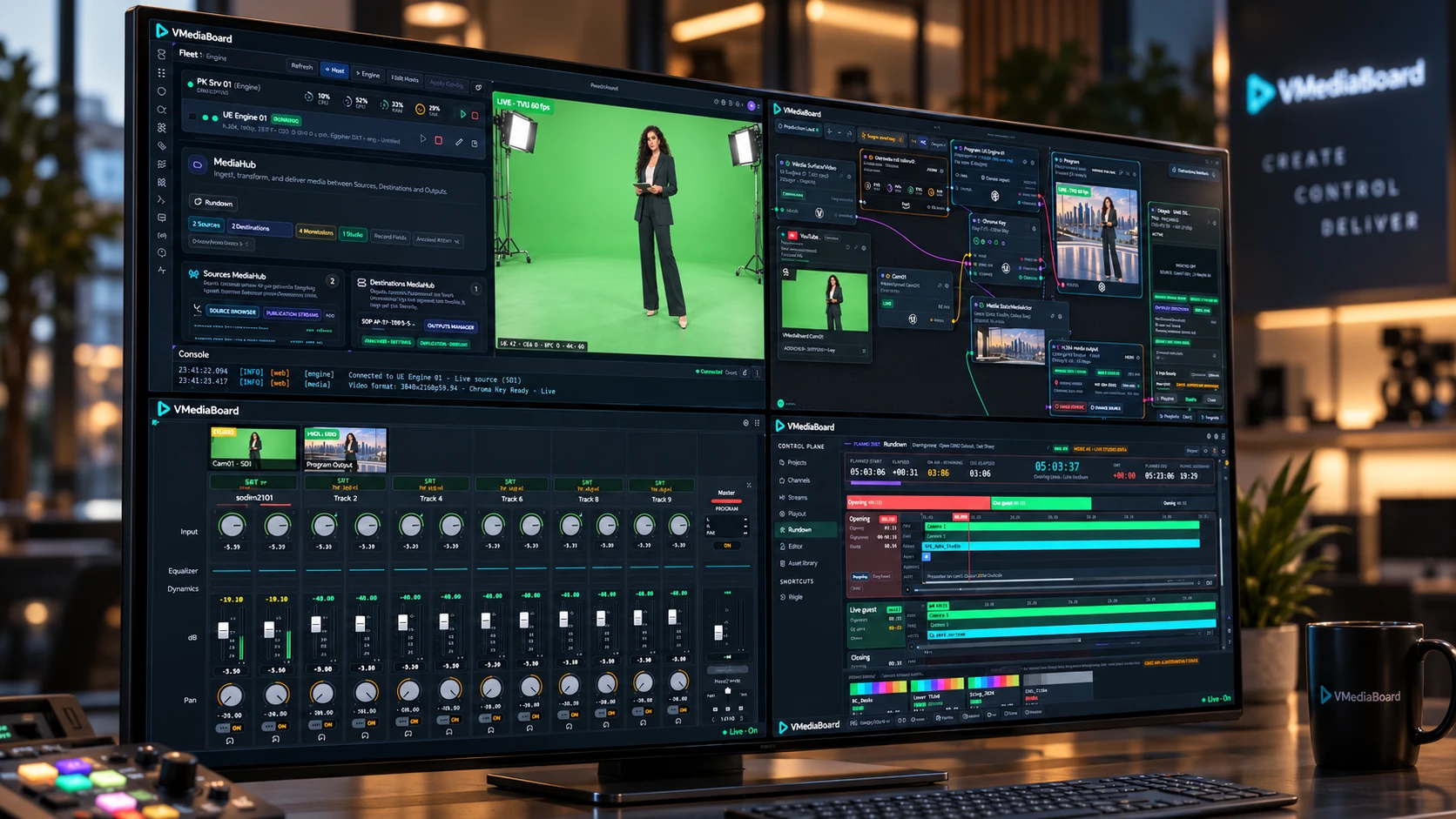
Point at a work area or use the list.
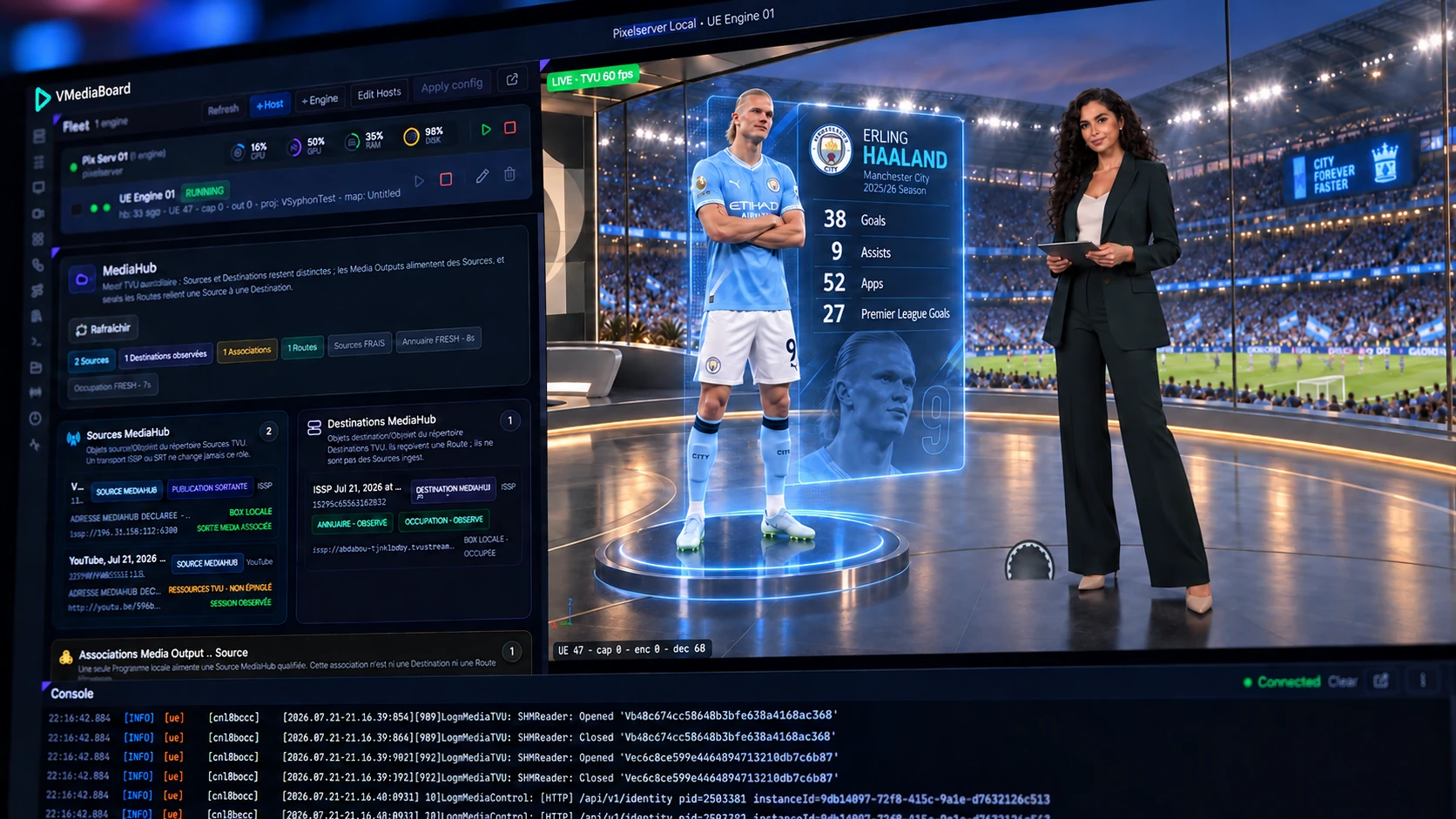
Sources and monitoring
Connect the sources and watch them arrive.
Engines, hosts and media routes are managed in one place. The live preview shows each feed before it enters the scene.
- 1Fleet
The hosts and Unreal Engine instances behind the show, with their load and state.
- 2MediaHub
Ingests, transforms and delivers media between sources, destinations and outputs.
- 3Sources and destinations
TVU, SRT and platform endpoints declared once and reused in every route.
- 4Live output
The rendered set as it leaves the engine, with the source, its format and frame rate.
- 5Console
What the engine and media layers report, as it happens.
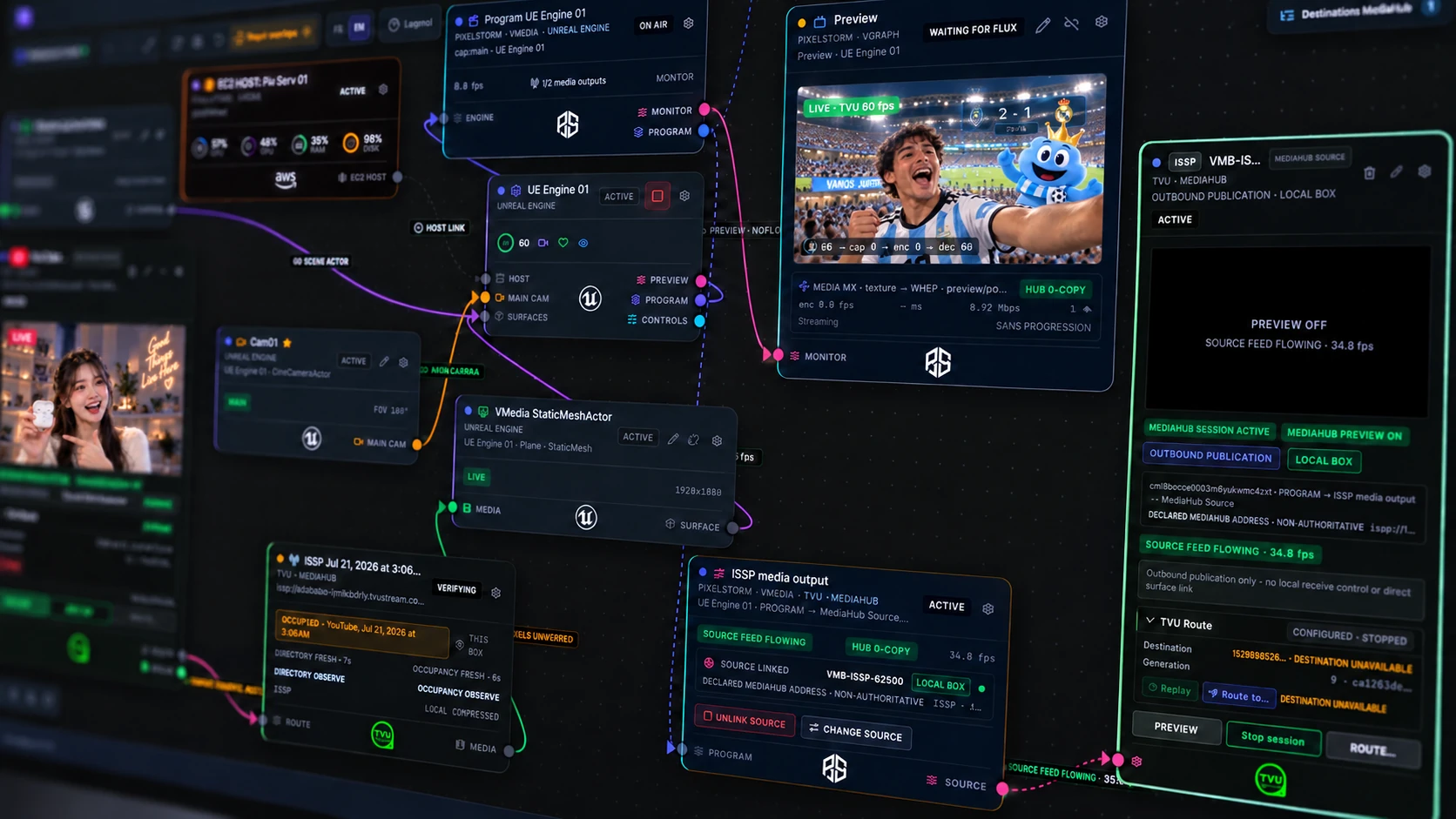
Scene and routing
Route each source into the scene, then to Preview or Program.
The graph shows how a camera feed reaches a surface in the 3D set, which engine renders it and where the program goes out.
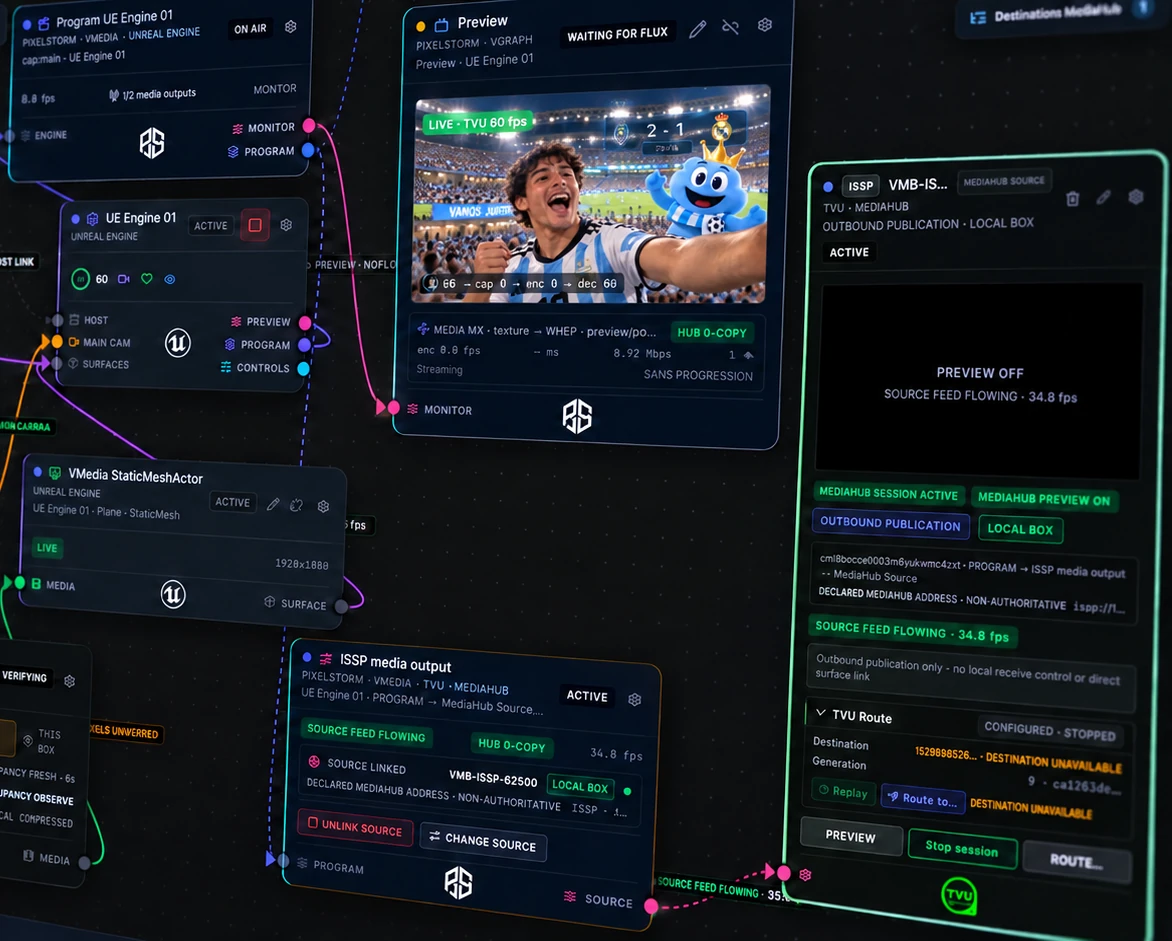
- 1Program
The rendered output that goes to air.
- 2Unreal Engine instance
The engine with its host, main camera, surfaces and controls.
- 3Surface in the set
The object in the 3D scene that receives a video feed.
- 4Preview
Check the composition before it goes to Program.
- 5Media output
The program published to a route: SRT, WebRTC or a platform.
- 6Destination route
A TVU route or an output that carries the program to the transmitter or the platform.
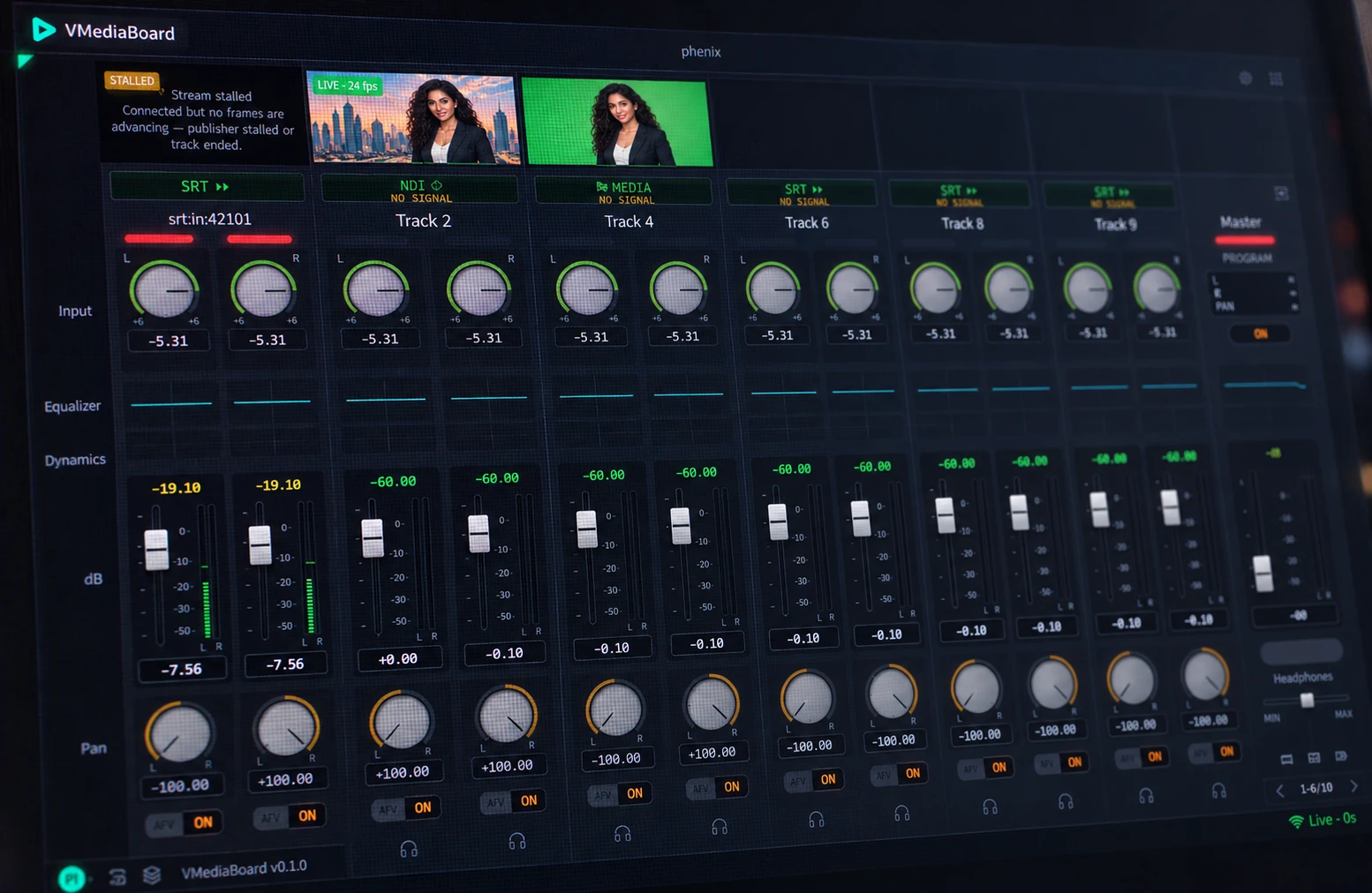
Audio
Mix the sound next to the pictures.
Every source arrives with its own channel. Gain, equaliser, dynamics, level and pan sit on one strip, and the master feeds the program.
- 1Source status
SRT, NDI or media file, with live, no-signal and stalled states shown where you mix.
- 2Input gain
Left and right gain for each channel.
- 3Equaliser and dynamics
Tone and compression per channel.
- 4Level
A fader and meters in dB for each track.
- 5Pan and audio follow video
Place the sound, or let it follow the camera that is on air.
- 6Master
The program mix and headphone monitoring.
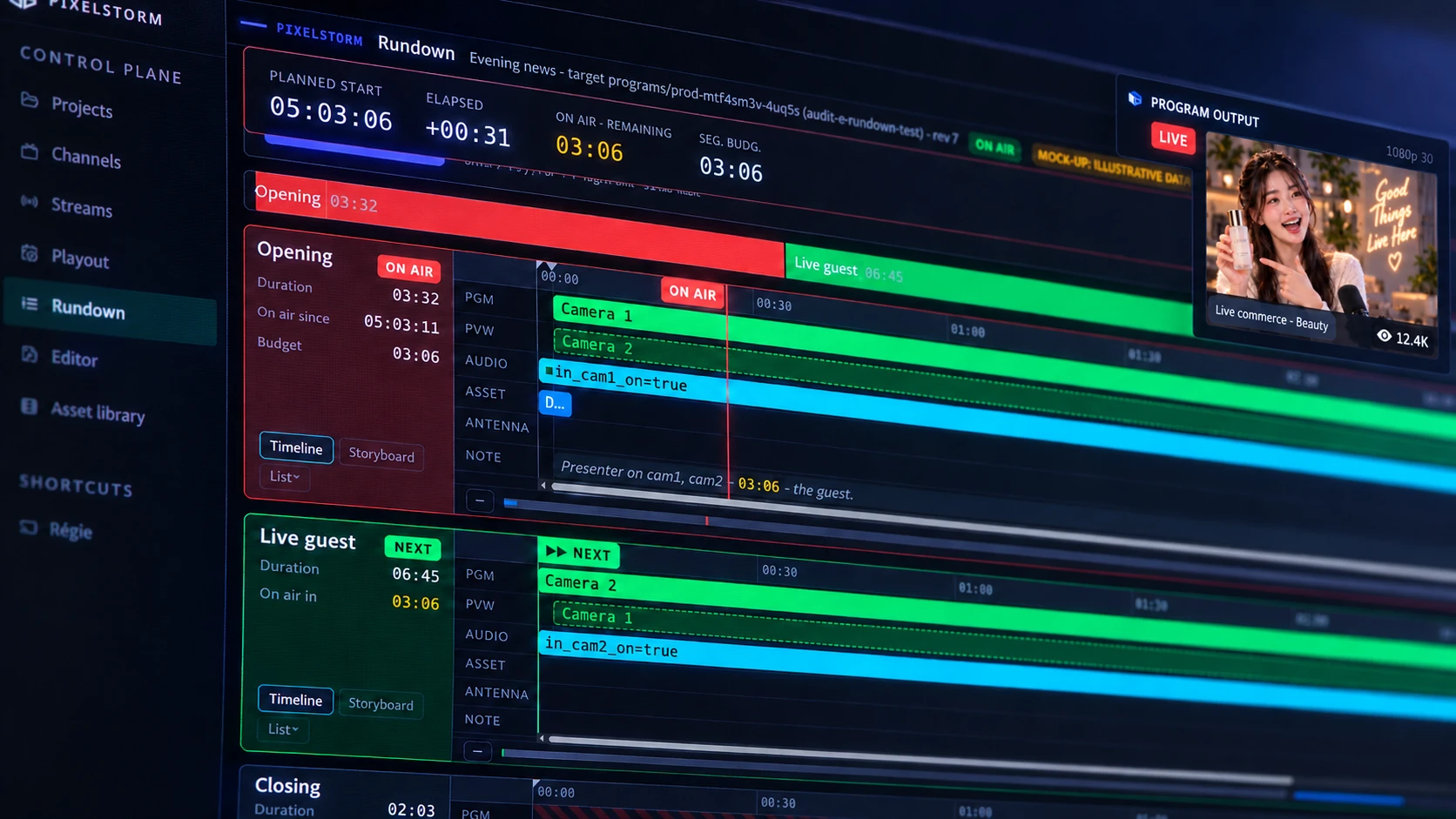
Rundown and playout
Keep the show on time. Let playout run the schedule.
The rundown lists the segments with their cameras, audio and assets, and shows what is on air and what comes next. Playout plays scheduled content and streams the program to the selected platforms.
- 1Clocks
Planned start, elapsed time and the time remaining on the segment on air.
- 2Running order
Opening on air, Live guest next, Closing after. Durations against the budget.
- 3Segment on air
Red means program. The cameras and audio of the current segment.
- 4Lanes
Program, preview, audio, assets, antenna and notes on a timeline.
- 5Next segment
Green means prepared. Its cameras are already set for the take.
- 6Program output
The picture as the audience sees it, with its live status. Playout keeps the channel on air between live sessions and sends the program to several destinations at once.
 YouTube
 Instagram
 TikTok
 Facebook
 LinkedIn
Streaming destinations for a program. Names and marks belong to their owners.
AI copilot
A technical task can start with a sentence.
The copilot works through the same controls as the operator. It prepares scene changes, explains settings and points at the cause of a problem. Nothing reaches the program output without you.
- Create and modify scenesAdd, move or replace objects and graphics in the 3D set from a plain-language request.
- Operate the productionFind a control, prepare the next change, understand what a setting does.
- Diagnose an issueGet the likely cause and the next thing to check when a source or an output misbehaves, with human support when it is needed.
- YouPut the sponsor board behind the presenter, slightly to the left.
- CopilotAdded Sponsor board to the sports set, 1.2 m behind the presenter and offset to the left. It is in Preview. Program is unchanged.
- YouWhy did Camera 2 stall?
- CopilotThe SRT feed on port 42101 stopped sending frames 12 seconds ago. Check the encoder on location. Camera 1 is still live, so the rundown can continue on it.
The copilot prepares; the operator decides what goes to air.
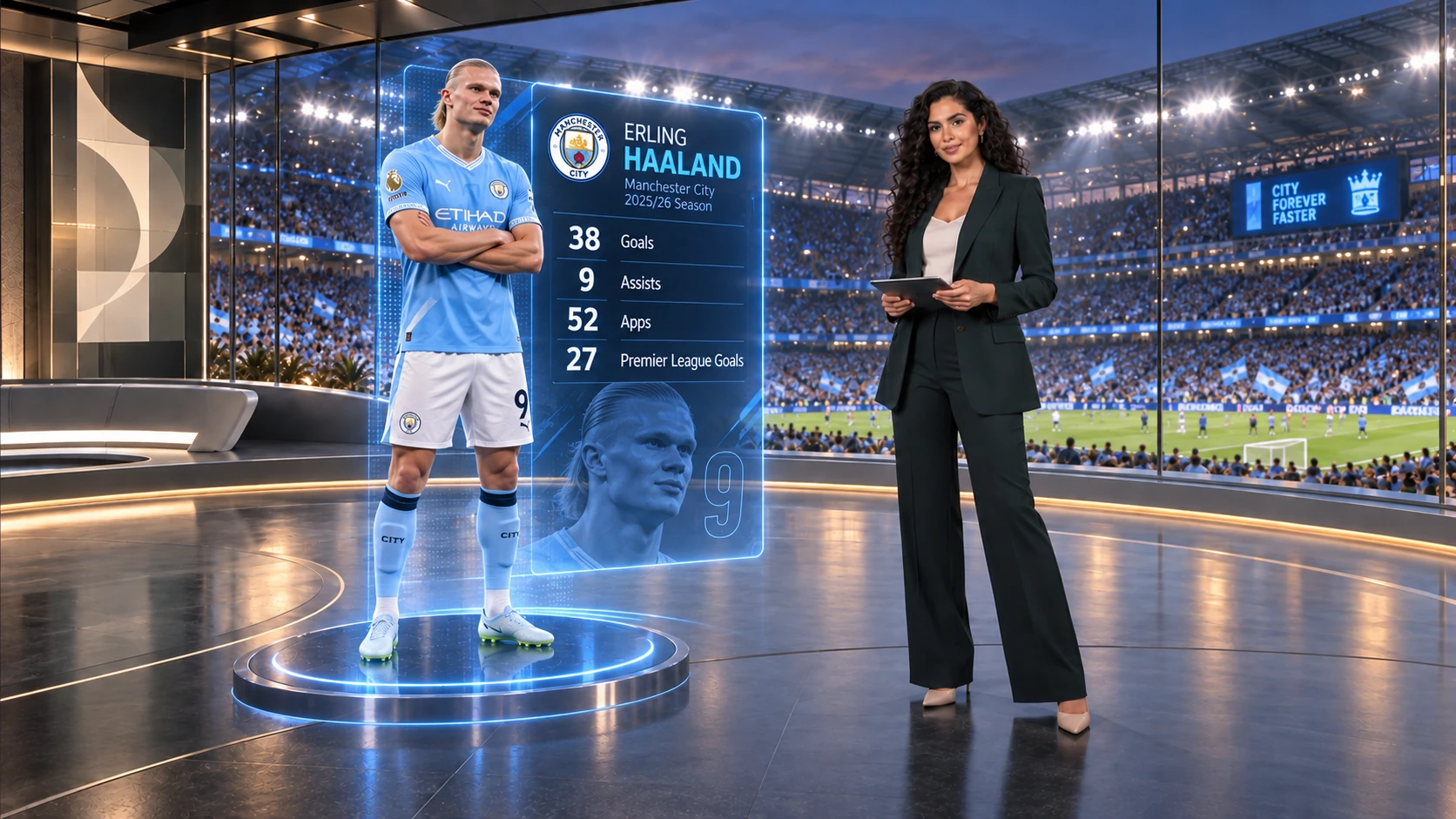
Sports set
Live graphics beside the presenter.
A 3D player graphic and its statistics, lit by the set.
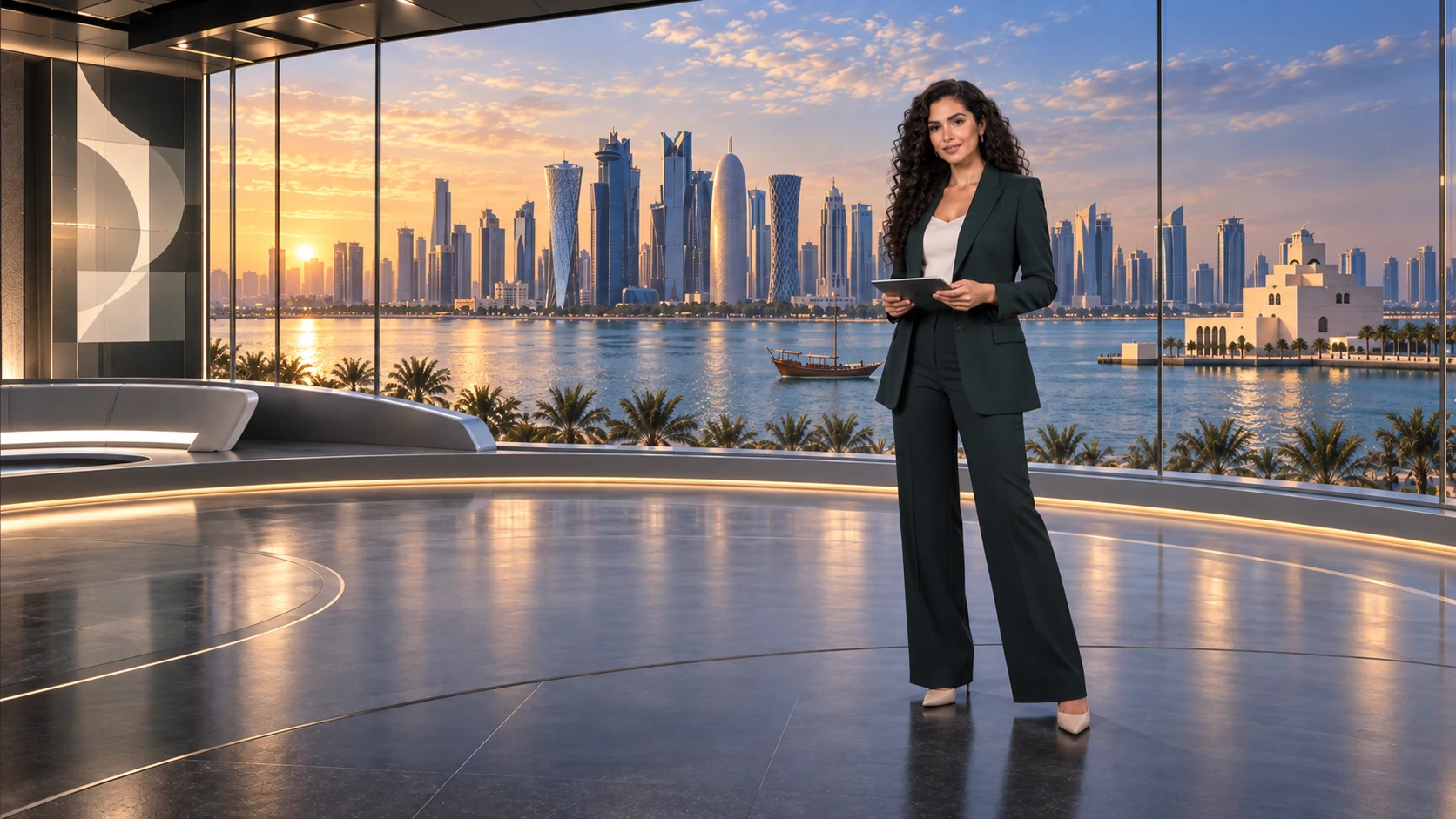
Newsroom set
The same take, in a newsroom.
Skyline, desk and lighting from the 3D scene.
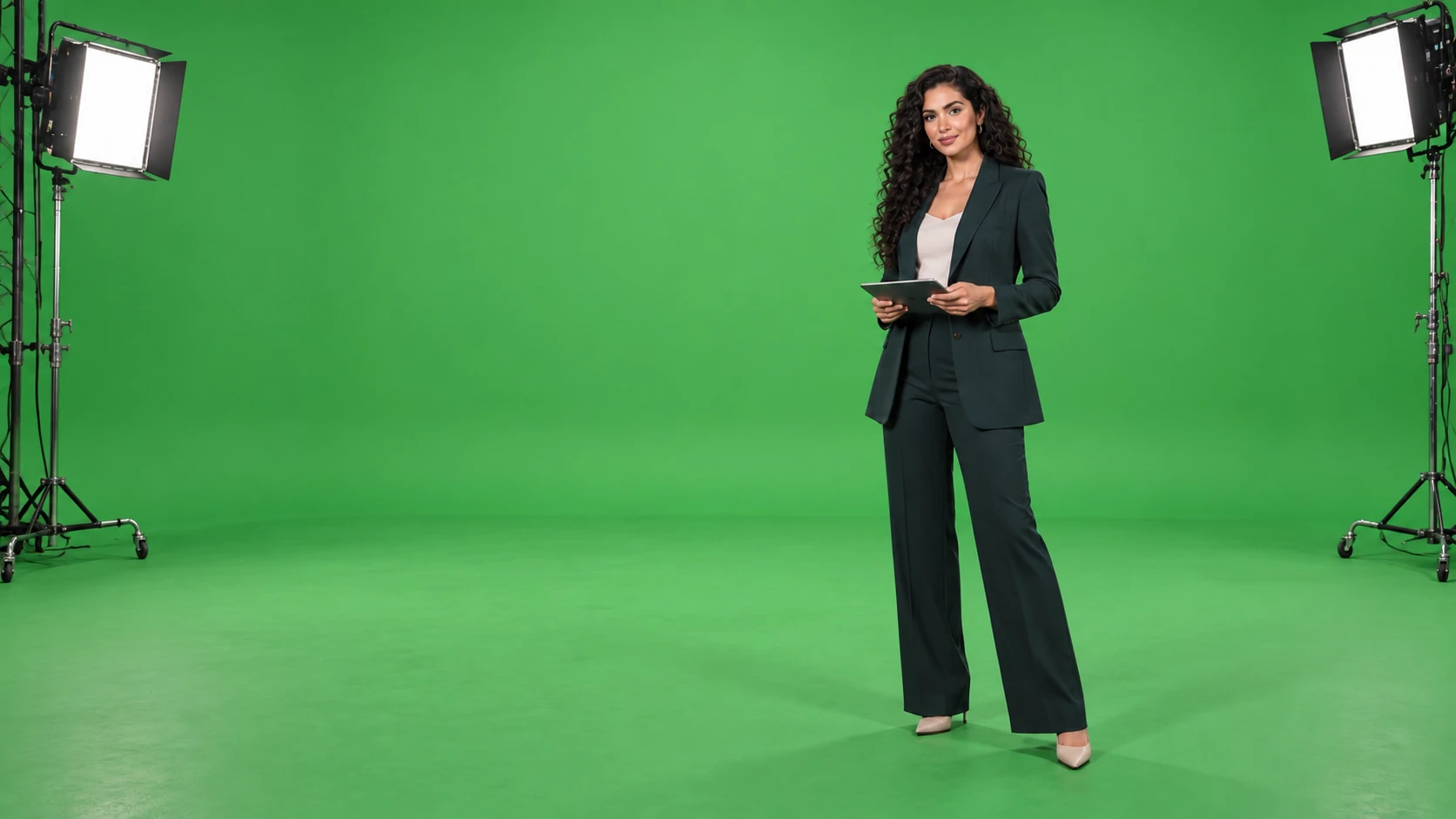
Camera input
What the camera sees.
The presenter on green, lit for the key.
Rendering
One camera feed. Any set.
PixelStorm's video integration makes the presenter react to the scene's lighting and shadows, with colour handled separately from the virtual set, so the person belongs in the picture.
- Unreal Engine on Linux, controlled remotelyThe engine runs natively on Linux servers and takes its instructions from the control room.
- Resources allocated through Kubernetes on AWSInstances are started for the production and released after it.
- One connected video pipelineFrom the incoming sources to the final outputs, the same pipeline carries the pictures and the sound.
Where the product stands
What a demonstration shows today.
VMediaBoard is a working product. The next step is a full production validated in a customer's own conditions.
Unreal Engine on Linux with PixelStorm's video integration, controlled from VMediaBoard.
Media transitions and live source recovery, with two program outputs recorded and reviewed.
A pilot measures stability, return latency and recovery on your actual connection before commercial use.
See the control room with your own sources.
A demonstration walks through the four work areas with a scene and an output that match your production.